Download PortMaster for Linux Handhelds
Install hundreds of PC game ports on your Linux handheld device. From Stardew Valley to Celeste, play your favorites on Anbernic, PowKiddy, TrimUI, and 30+ devices.
What Makes PortMaster Different
Built by the community, for the community. PortMaster handles the hard parts of getting PC games running on handheld Linux devices so you can just play.
500+ Playable Game Ports
Access a growing catalog of PC games ported to run on handheld hardware. Titles range from indie hits like Celeste and Stardew Valley to classics like Half-Life and Quake. New ports get added by community contributors every week.
30+ Supported Devices
Works on Anbernic RG35XX, RG353, RG556, PowKiddy RGB30, TrimUI Smart Pro, and dozens more. If your handheld runs ArkOS, muOS, ROCKNIX, or AmberElec, PortMaster probably supports it.
One-Click Install
Browse the port list, tap install, and PortMaster handles downloads, dependencies, and file placement automatically. No terminal commands or manual file copying required.
Runtime Management
PortMaster installs and manages runtimes like gptokeyb, SDL2, and Mono behind the scenes. Each port automatically pulls the correct runtime version it needs to run properly.
Ready-to-Run Detection
PortMaster scans your device and highlights which ports are ready to launch immediately based on the game files you already own. It separates games you can play right now from ones that still need assets, so there is no guesswork.
Custom Themes
Choose from 8+ visual themes to match your style. Switch between dark and light variants, or pick a color scheme that fits your device. The UI adapts to your preference.
Sort and Filter Ports
Organize the port library by genre, porter name, or runtime. Find exactly what you want fast, whether you are looking for platformers, RPGs, or games by a specific contributor.
Automatic Updates
PortMaster checks for port updates and applies patches without manual intervention. When a porter fixes a bug or improves performance, you get the update through the app directly.
Storage-Aware
See available disk space alongside port sizes before you install. PortMaster shows storage usage at a glance so you can manage your SD card without switching to a file manager.
Fully Open Source
MIT licensed and developed in the open on GitHub. Anyone can inspect the code, submit ports, report bugs, or contribute improvements. The entire project is community-driven from top to bottom.
Ready to start playing? Download PortMaster and install your first port in minutes.
System Requirements
PortMaster runs on Linux-based handheld gaming devices. Here is what your device needs to run it properly.
| Component | Minimum | Recommended |
|---|---|---|
| Device | Any supported Linux handheld (e.g., Anbernic RG35XX, PowKiddy RGB30) | Anbernic RG556, RG353M, or TrimUI Smart Pro for best performance |
| Processor | ARM Cortex-A53 or equivalent (single/dual-core capable) | ARM Cortex-A55 quad-core or RK3566/RK3326 chipset |
| RAM | 256 MB (enough for lightweight ports) | 1 GB or more (needed for larger ports like Stardew Valley) |
| Storage | ~11 MB for PortMaster + 100 MB free for game ports | 2 GB+ free on SD card for installing multiple game ports |
| Operating System | ArkOS, muOS, JelOS, RetroOZ, or AmberElec (any supported CFW) | ArkOS or ROCKNIX (latest stable release) |
| Display | 320×240 minimum screen resolution | 640×480 or higher for the best visual experience |
| Internet | Wi-Fi required for downloading ports (built-in or USB adapter) | Stable Wi-Fi connection for faster downloads and updates |
| SD Card | 8 GB microSD card (FAT32 or ext4 formatted) | 32 GB+ high-speed microSD (Class 10 / UHS-I or faster) |
Not sure if your device is compatible? Check the FAQ for a full list of supported handhelds.
What Is PortMaster?
A community-built port manager that brings hundreds of PC games to Linux handheld devices
PC game ports for your handheld
PortMaster is a free, open-source application that lets you install and manage PC game ports on Linux-based handheld gaming devices. Instead of being limited to emulated retro titles, PortMaster gives you access to a library of 500+ ported PC games that run natively on your handheld hardware. Think Stardew Valley, Celeste, Half-Life, Balatro, and Sonic Mania – all playable on devices like the Anbernic RG35XX or TrimUI Smart Pro.
The project started with christianhaitian and has grown into a full community effort under the PortsMaster Community on GitHub. PortMaster itself is built with Python and SDL2, and it works across more than 30 handheld devices running custom Linux firmware like ArkOS, muOS, ROCKNIX, JelOS, and AmberElec. If your device runs one of these operating systems, PortMaster probably supports it.
How it works
The PortMaster app runs directly on your handheld. Its interface shows a scrollable list of available game ports with cover art, genres, and file sizes. You can browse by category, filter by runtime or porter, and install games with a single button press. The app handles downloads, updates, and dependency management on its own. Some ports are “ready to run” with free game data included, while others require you to supply your own game files from a legitimate copy.
What sets PortMaster apart from emulation is that these are actual source ports or engine reimplementations. Games run through native Linux binaries rather than an emulator layer, which means better performance and proper controls on low-powered hardware. The current library spans platformers, RPGs, FPS games, card games, puzzle titles, and more – with new ports added regularly by community contributors.
Ready to get started? Download PortMaster and browse the full game library on your device.
Getting Started with PortMaster
From downloading the app to launching your first game port, here is everything you need to get PortMaster running on your Linux handheld device.
Downloading PortMaster
Head to our download section above to grab the latest release of PortMaster (version 2026.10.24, roughly 23 MB). You will find two installation script options and one manual zip file. Pick the right one based on your setup:
- Install.Full.PortMaster.sh — The recommended choice for most users. This script bundles all required runtimes (like Mono and gptokeyb) so you can install ports right away without any extra downloads. About 23 MB for the lightweight installer, 633 MB for the full version with runtimes.
- Install.PortMaster.sh — A lighter installer that downloads runtimes on demand. Choose this if storage space is tight on your SD card, though you will need Wi-Fi during the first port installations.
- PortMaster.zip — The manual option. You extract the contents yourself and place them in the correct folder. Best for advanced users or devices where the .sh scripts do not run properly.
If you are brand new, grab Install.Full.PortMaster.sh. It keeps the process simple and works on ArkOS, muOS, ROCKNIX, AmberElec, JelOS, and most other supported custom firmwares. The download finishes in under a minute on most connections.
Tip: Always download from our page or the official GitHub releases. Third-party download sites sometimes host outdated or modified versions that can cause issues on your device.
Installation Walkthrough
PortMaster does not use a traditional installer with dialog boxes. Instead, you copy a script or folder to your SD card and run it from within your custom firmware. The exact folder varies by firmware, but the process follows the same pattern across all of them.
ArkOS Installation
PortMaster comes pre-installed on many recent ArkOS builds. Check under Tools or Ports in EmulationStation first. If it is not there:
- Copy Install.Full.PortMaster.sh to the
/roms/tools/folder on your ROM SD card (usually the second SD card slot). - Insert the SD card back into your device and power it on.
- In EmulationStation, go to Tools or Ports and run the install script.
- Wait about 30 seconds. PortMaster extracts its files and creates the necessary directories automatically.
- Once finished, you will see a “PortMaster” entry under Tools. Select it to launch the app.
For manual installation on ArkOS: unzip PortMaster.zip and copy the PortMaster/ directory to /roms/tools/PortMaster/. Then move PortMaster.sh up one level to /roms/tools/ so EmulationStation can find it.
muOS Installation
MustardOS (muOS) ships with PortMaster under Applications. To update or install it fresh:
- Download muos.portmaster.zip from the official releases.
- Place it in the
/ARCHIVE/folder on your primary SD card. - On your device, open Archive Manager and select muos.portmaster to install.
- After installation, access PortMaster from Applications in the main menu.
Other Firmware (ROCKNIX, JelOS, AmberElec)
Copy the install script or unzip PortMaster.zip into your firmware’s designated ports folder. For ROCKNIX, that is /roms/ports/. For JelOS and AmberElec, check your firmware wiki for the exact path. The install script handles the rest once you run it from the Ports menu.
Important: Back up your SD card before installing or updating PortMaster. While the install process is safe, a backup protects your save files and ROM library if anything goes wrong.
Initial Setup and Configuration
When you launch PortMaster for the first time, the app connects to the PortMaster server to fetch the latest port catalog. Make sure your device is connected to Wi-Fi before opening the app. The initial sync takes about 10-15 seconds depending on your connection speed.
Once the main screen loads, you will see four tabs at the top: All Ports, Ready to Run, Manage Ports, and Options. Before installing your first game, there are a few things worth configuring:
Download Runtimes
Go to Options > Runtime Manager. Runtimes are shared libraries that multiple ports depend on, like gptokeyb (button mapping) and Mono (for .NET-based ports). Scroll to the bottom of the list and select “Download All”. This pre-loads every runtime so ports install faster later. The full download is around 50-80 MB depending on your device architecture.
Pick a Theme
Go to Options > Themes. PortMaster includes 8 built-in themes. The default is clean and functional, but you can switch to themed options like FF VII (dark, inspired by Final Fantasy menus), Zelda LTTP (green, Link to the Past aesthetic), or Basic (minimal starting point for custom work). Pick what feels right for your device screen.
Set Language
PortMaster supports multiple languages. Navigate to Options > Language and select your preferred language. The interface updates immediately.
Check for Updates
From the bottom bar of the Options screen, select Update PortMaster. This pulls the latest app version and port metadata. Run this periodically — the team pushes updates and new ports regularly.
Tip: If your device has no Wi-Fi, you can still use PortMaster. Download port zip files from our download section, place them in /roms/ports/PortMaster/autoinstall/ on your SD card, then launch PortMaster. The app detects and installs them automatically.
Installing Your First Game Port
This is where the fun starts. PortMaster divides ports into two categories: Ready to Run (free, open-source games that work immediately) and ports that require game files (commercial titles where you supply your own legally purchased game data).
Installing a Free “Ready to Run” Port
Let’s install a free game to test your setup. Open PortMaster and go to the All Ports tab. Use the D-pad to scroll through the list. You can also press the menu button to filter ports by genre, porter, or runtime.
- Find a free port — something like Undertale (Web), 2048, or Super Mario War. These do not need external game files.
- Select the port to view its info popup. This shows the description, file size, required runtime, and install status.
- Press A (or the confirm button on your device) to start downloading. A progress bar shows the download status.
- Once installed, press B to go back, then exit PortMaster.
- In your firmware’s main menu, navigate to Ports. Your newly installed game should appear there. Select it and it launches directly.
Installing a Commercial Port (e.g., Stardew Valley)
For games like Stardew Valley, Celeste, or Half-Life, you need to provide the game data from your own purchased copy (usually the Steam version):
- On your PC, locate the game files. For Steam: right-click the game in your library, go to Manage > Browse Local Files.
- Install the port through PortMaster first. The app creates the folder structure and downloads the port engine.
- Connect your SD card to your PC (or use file transfer over the network).
- Copy your game data files into
/ports/[gamename]/gamedata/on the SD card. Each port’s info popup in PortMaster tells you exactly which files are needed. - Put the SD card back in your device, navigate to Ports, and launch the game.
The PortMaster catalog currently lists over 500 ports across platformers, RPGs, FPS titles, puzzle games, and more. Browse the All Ports tab or switch to Ready to Run to see what you can play right now without any extra files.
Tip: Sort ports by genre using the filter menu. This helps you find specific types of games faster. Platformers and puzzle games tend to run best on lower-powered devices like the RG35XX, while FPS titles perform better on the RG556 or TrimUI Smart Pro.
Tips, Tricks, and Best Practices
Match ports to your hardware. Not every port runs well on every device. Lower-powered handhelds (Anbernic RG35XX, PowKiddy RGB10) handle 2D ports and lighter engines with no trouble, but 3D titles like Half-Life and Quake need more processing power. The RG556, TrimUI Smart Pro, and RG353 handle these better. Check the port info popup for recommended devices before downloading.
Use the autoinstall folder for bulk installs. If you have multiple port zips downloaded on your PC, copy them all into /roms/ports/PortMaster/autoinstall/ on your SD card. The next time you launch PortMaster, it processes and installs each one automatically. Great for setting up a new device offline.
Troubleshoot with log files. If a port crashes or does not launch, check the log file at /ports/[portname]/log.txt. This file records exactly what went wrong. Missing game data, wrong file names, and incompatible runtimes are the most common issues. The log tells you which file is missing so you can fix it directly.
Create custom themes. Advanced users can build their own PortMaster themes by editing theme.json inside the themes directory. The theme system supports custom colors, fonts, layout overrides for different screen resolutions, and even hardware-specific tweaks (different font sizes for high-resolution screens, different layouts for widescreen devices).
Stay updated. The PortMaster team adds new ports and patches weekly. Open the app, go to Options, and hit Update PortMaster every couple of weeks. Reinstalling a port through the app updates it to the latest version while keeping your saves intact. For community support and new port announcements, the PortMaster Discord server is the most active hub.
Tip: Bookmark the Features section above for a full breakdown of what PortMaster can do, and visit the FAQ for answers to common troubleshooting questions.
Ready to start playing? Download PortMaster and bring hundreds of PC games to your handheld.
PortMaster in Action
See how PortMaster looks running on actual handheld devices. Browse ports, manage installs, and play hundreds of games right from your pocket.
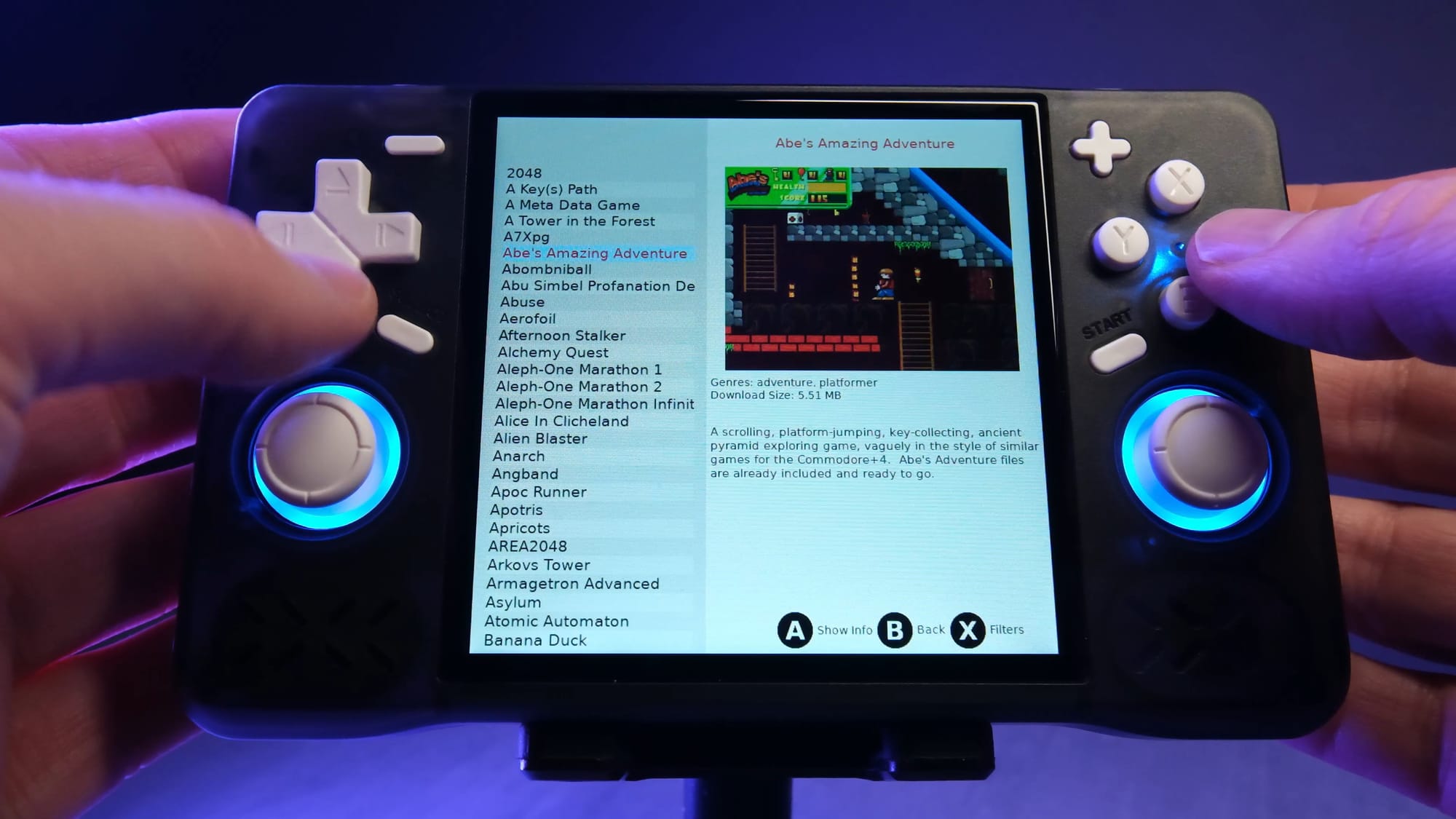
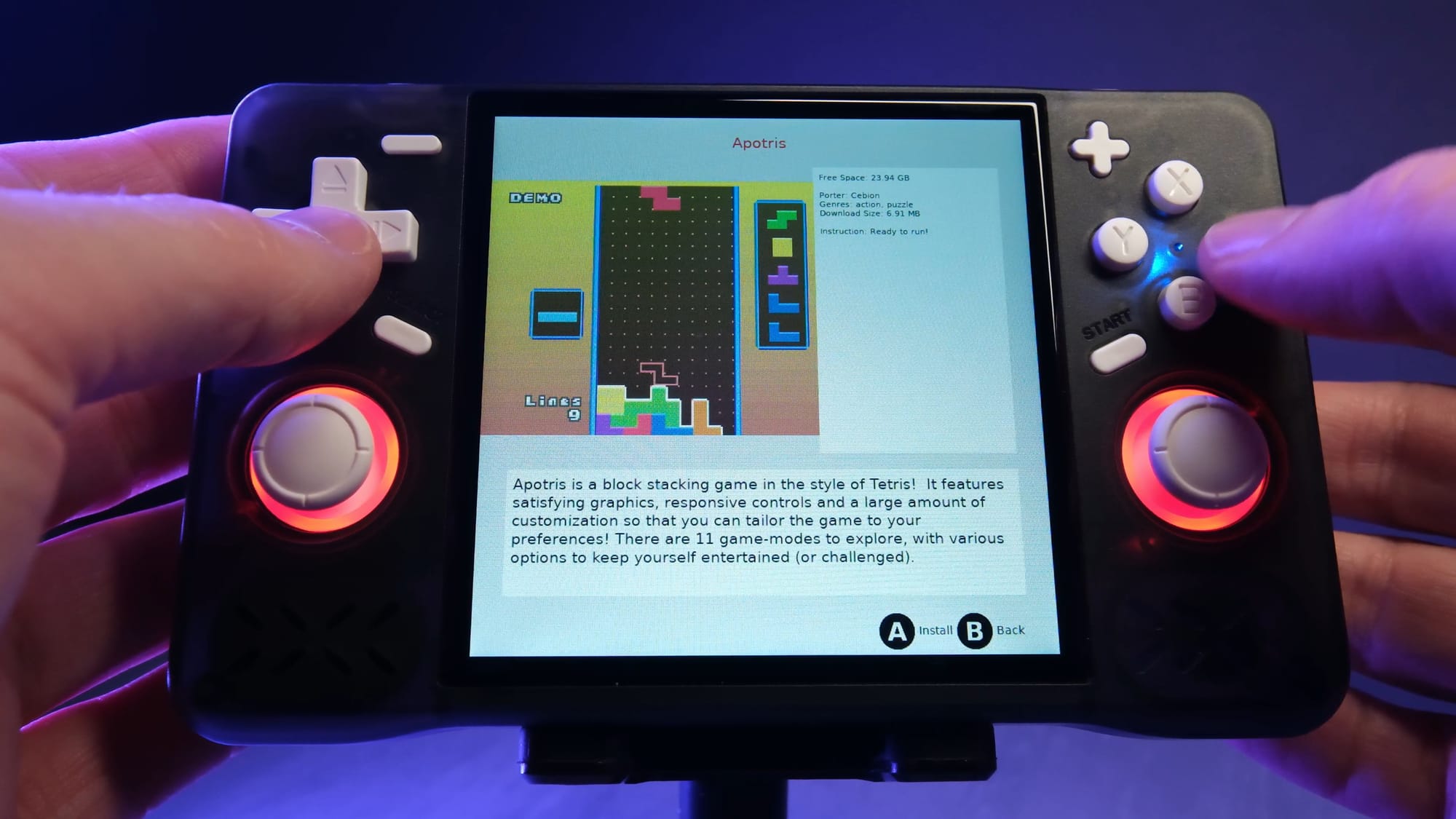
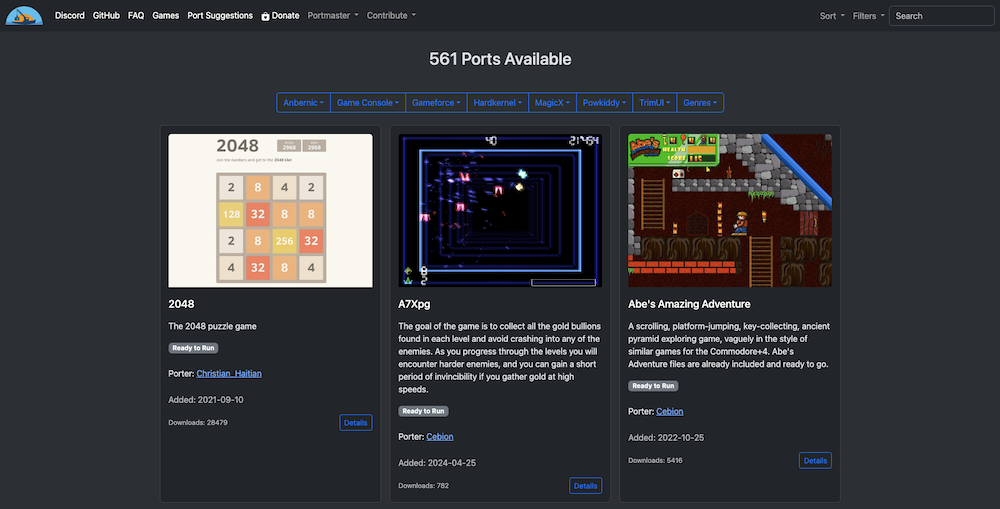
Click any screenshot to view full size. PortMaster supports 30+ handheld devices.
Download PortMaster
Grab the installer script, copy it to your handheld’s SD card, and start installing 500+ game ports in minutes.
Install.Full.PortMaster.sh
The full installer bundles all runtimes (gptokeyb, Mono, SDL) needed to run game ports out of the box. Best for offline setups or handhelds without WiFi. Drop the file on your SD card and launch from the Ports menu.
Download PortMaster v2026.10.24 · 633 MB · Full Installer with RuntimesLightweight Installer
Install.PortMaster.sh downloads runtimes on-the-fly. Smaller initial file, but requires a WiFi connection on first launch.
Lightweight Script (23 MB)Manual ZIP Archive
Download PortMaster.zip, extract the PortMaster folder, and place it directly into your SD card’s ports directory. Good for troubleshooting.
PortMaster.zip (23.2 MB)muOS Package
Pre-packaged zip for muOS devices. Drop it into the correct folder and run PortMaster from the Ports menu.
muOS Package (23 MB)TrimUI Package
Purpose-built package for TrimUI Smart Pro and TrimUI Brick devices. Copy to your SD card and launch from Ports.
TrimUI Package (23 MB)Supported Custom Firmware
Need help with installation? Check out our Getting Started guide for step-by-step instructions on setting up PortMaster on your specific device and custom firmware.
Frequently Asked Questions
Answers to the most common questions about PortMaster, from installation and device compatibility to troubleshooting and game ports.
Is PortMaster safe to download and install?
Yes, PortMaster is 100% safe to download. The project is fully open source under the MIT license, with all source code publicly available on GitHub at the PortsMaster/PortMaster-GUI repository. Every release is built from this transparent codebase, and the community regularly audits the code for security issues.
PortMaster version 2026.10.24 is about 23 MB (lightweight installer) or 633 MB (full installer with runtimes) and does not modify your handheld device’s core operating system libraries. Each game port bundles its own dependencies inside its port folder, keeping everything isolated from the rest of your system. The project was originally created by christianhaitian and is now maintained by the PortsMaster Community, a volunteer group of developers and porters with over 3,000 members on Discord.
- Source code is fully auditable on GitHub — no closed-source binaries
- Does not require root access or modify system-level files
- Each port runs in its own folder with self-contained libraries
- Over 500 ports have been tested across 30+ devices by the community
- No telemetry, ads, or data collection of any kind
Pro tip: Always download PortMaster from the official source at portmaster.games/installation.html. Third-party download sites may bundle outdated or modified versions that cause compatibility problems.
For more details on what PortMaster includes, check our features overview.
Where is the official safe download for PortMaster?
The official and safest download source for PortMaster is portmaster.games, maintained directly by the PortsMaster Community. You can also find releases on the official GitHub repository at PortsMaster/PortMaster-New. Both sources host the same verified PortMaster.zip file.
Many handheld gaming devices ship with a pre-installed version of PortMaster, but these bundled versions are often outdated. For example, the stock Linux OS on Anbernic RG353V devices included a broken version that would not self-update. The current version (2026.10.24) resolves those issues, but you need to manually replace the old installation with the latest download from the official site.
- Visit our download section or go to portmaster.games/installation.html
- Download the latest PortMaster.zip file (approximately 23 MB)
- Transfer the zip to your device via SSH, SD card reader, or network share
- Extract it to the correct folder for your firmware (typically /roms/ports/ for most CFW)
- Launch PortMaster from the Ports section of your device menu
Pro tip: Bookmark the official installation page rather than searching each time. Several Reddit posts on r/RG353V and r/SBCGaming report users accidentally downloading fan-modified versions from unverified sources that caused boot issues.
See our Getting Started guide for a full installation walkthrough with device-specific instructions.
What devices and firmware does PortMaster support?
PortMaster supports over 30 Linux-based handheld gaming devices running compatible custom firmware. The full device list is maintained on portmaster.games and grows regularly as community members add support for new hardware.
The most popular supported devices include the Anbernic RG35XX series (RG35XX, RG35XX Plus, RG35XX H, RG35XX SP), Anbernic RG353 series (RG353V, RG353M, RG353P, RG353PS), Anbernic RG556, PowKiddy RGB30, TrimUI Smart Pro, TrimUI Brick, and the Miyoo Mini Plus. On the firmware side, PortMaster works with ArkOS, muOS, JELOS, ROCKNIX (formerly AmberELEC), Knulli, and several other Linux-based custom firmware options.
- Anbernic devices: RG35XX family, RG353 family, RG556, RG28XX
- PowKiddy devices: RGB30, RGB20S, and similar models
- TrimUI devices: Smart Pro, Brick, and compatible models
- Supported firmware: ArkOS, muOS, JELOS, ROCKNIX, Knulli, RetroOZ
- CPU architectures: ARM (RK3326, RK3566, RK3588, Allwinner H700)
Pro tip: Not all ports run on every device. Some graphically intensive ports like Stardew Valley need the newer RK3566 or RK3588 chipsets to run smoothly, while lighter ports like 2048 or Cave Story work on older RK3326 hardware.
Check the system requirements section for hardware specifics.
Does PortMaster work on Android handhelds?
No, PortMaster does not work on Android-based handheld devices. It is built exclusively for Linux-based custom firmware systems. Devices like the Retroid Pocket 2S, Retroid Pocket 3+, and Retroid Pocket 4 Pro that run Android are not compatible with PortMaster.
PortMaster is written in Python with SDL2 and depends on the Linux filesystem structure and package layout that custom firmware provides. Android uses a completely different architecture, file system, and permissions model. The r/SBCGaming community has discussed this limitation extensively, and the PortsMaster developers have confirmed there are no plans for Android support given the fundamental platform differences.
- Compatible: Linux-based firmware — ArkOS, muOS, JELOS, ROCKNIX, Knulli
- Not compatible: Android, Windows, macOS, iOS, SteamOS
- Workaround for some devices: If your handheld supports dual-boot (like some Anbernic models), install a Linux CFW alongside Android and run PortMaster from the Linux side
If you own an Android-only device and want to play PC ports, your best options are using RetroArch with its libretro cores for certain engine ports (like PrBoom for Doom) or side-loading native Android builds of indie games when available.
Pro tip: Before buying a new handheld specifically for PortMaster, check the device compatibility list at portmaster.games. Some budget devices like the R36S clones are supported, but only if running a compatible Linux CFW like ArkOS.
Learn more about supported platforms on our features page.
What are the system requirements for PortMaster?
PortMaster itself requires minimal resources — roughly 23 MB of storage and any ARM-based Linux handheld with a compatible custom firmware. The actual requirements depend heavily on which game ports you want to run.
The PortMaster application runs on devices with as little as 256 MB of RAM and an RK3326 processor (found in older handhelds like the Anbernic RG351). However, the more demanding game ports need stronger hardware. Stardew Valley, for example, runs best on RK3566 or newer chipsets with at least 1 GB of RAM. Lighter ports like Cave Story, AM2R, or 2048 will run on just about any supported device.
- PortMaster app: ~11 MB storage, ARM Linux, Python + SDL2 runtime
- Light ports (Cave Story, 2048): RK3326 / 256 MB RAM minimum
- Medium ports (Celeste, Half-Life): RK3566 / 512 MB RAM recommended
- Heavy ports (Stardew Valley, Balatro): RK3566+ / 1 GB RAM recommended
- Storage: Individual ports range from 5 MB to 500+ MB, plus game data files
WiFi connectivity is helpful for downloading ports directly on the device, but it is not required. You can sideload ports via SD card or the autoinstall folder method for devices without built-in WiFi.
Pro tip: Sort ports by “Ready to Run” in the PortMaster app to see which games do not need additional game files. These are free, open-source ports that work immediately after download.
See the full system requirements table for a device-by-device breakdown.
Is PortMaster completely free to use?
Yes, PortMaster is completely free. The application itself, all its code, and hundreds of the game ports it distributes cost nothing to download or use. There are no premium tiers, subscriptions, or paid features.
PortMaster is released under the MIT open-source license, which means anyone can use, modify, and redistribute the software without restrictions. The PortsMaster Community develops and maintains everything through volunteer effort. The project has been free since christianhaitian originally created it, and the current maintainers have stated they intend to keep it that way.
- PortMaster app: Free, open source, MIT license
- “Ready to Run” ports: Free to download and play immediately (200+ games)
- Ports requiring game files: You need to own the original game and supply the data files yourself (e.g., Stardew Valley requires your purchased game data folder)
- No ads or in-app purchases: The app contains zero monetization
The distinction between “Ready to Run” and other ports matters. Ready to Run ports include all necessary game files and are typically open-source games or fan recreations. Other ports need you to provide your own legally purchased game data files, which you copy to the appropriate folder on your device.
Pro tip: Filter by “Ready to Run” in the PortMaster app to browse the 200+ games you can play right now without needing any additional files. Great titles like AM2R, Cave Story, and Shovel Knight: Treasure Trove source port are in this category.
Visit our download section to get started at no cost.
Do I need to own the original games to use PortMaster ports?
It depends on the specific port. PortMaster offers two types of game ports: “Ready to Run” ports that include everything you need, and ports that require you to supply your own game data files from a purchased copy.
Around 200+ ports in the PortMaster library are labeled “Ready to Run,” meaning they bundle all necessary assets and can be played immediately after downloading. These are typically open-source game engines, fan recreations, or games whose developers have released them freely. The rest of the 500+ ports are engine ports — community-built Linux builds of game engines that need the original game data to function.
- Ready to Run (free): AM2R, Cave Story, Sonic the Hedgehog (decompilation), OpenLara (Tomb Raider), and 200+ more
- Requires game files: Stardew Valley, Celeste, Half-Life, Balatro, Shovel Knight
- Where to get game files: Purchase from Steam, GOG, Humble Bundle, or itch.io, then copy the data folder to the port directory on your SD card
The PortMaster app clearly labels which ports need game files and which are Ready to Run. When you select a port that needs files, it shows instructions explaining exactly which files to copy and where to place them on your device.
Pro tip: GOG versions of games often work better with PortMaster ports than Steam versions because GOG games ship DRM-free, making the data files easier to extract and transfer. Check the PortMaster Wiki for game-specific instructions.
Browse all available ports in our features section.
How do I download and install PortMaster step by step?
Installing PortMaster takes about five minutes. Download the latest PortMaster.zip from the official site, extract it to the correct folder on your SD card, and launch it from your device’s Ports menu.
The exact installation path varies by firmware. On ArkOS, the folder is /roms/tools/PortMaster/. On muOS, it is /roms/ports/. JELOS and ROCKNIX use /roms/ports/ as well. The PortMaster.zip file for version 2026.10.24 is approximately 23 MB, so it downloads quickly even on slow connections.
- Download PortMaster.zip from our download section or portmaster.games/installation.html
- Power off your handheld and remove the SD card (or connect via SSH/SFTP if you prefer)
- Insert the SD card into your computer and navigate to the correct ports directory for your firmware
- Delete any existing PortMaster folder in that directory to avoid conflicts with old versions
- Extract the contents of PortMaster.zip into the ports directory
- Safely eject the SD card, insert it back into your device, and power on
- Navigate to the Ports section in your device menu and launch PortMaster
- On first launch, PortMaster will auto-update itself and download the latest port database
Pro tip: If you see a “starting update” screen that seems stuck on first launch, give it 2-3 minutes. PortMaster is downloading metadata for all 500+ ports over your device’s WiFi, and handheld WiFi chips can be slow.
Our Getting Started guide has detailed walkthrough with firmware-specific screenshots.
How to install PortMaster without WiFi on my handheld?
You can install both PortMaster and individual game ports without WiFi by using the autoinstall folder method. This works by placing port zip files on your SD card, which PortMaster processes on next launch.
Some budget handhelds like the R36S clones and certain Miyoo Mini variants lack built-in WiFi, making direct downloads impossible. The PortsMaster community designed the offline installation workflow specifically for these devices. You download everything on your computer and transfer the files via SD card.
- On your computer, download PortMaster.zip from portmaster.games and install it to the SD card as normal
- For game ports, visit the PortMaster website and download individual port .zip files to your computer
- On the SD card, navigate to /roms/ports/PortMaster/ and create a folder called “autoinstall” if it does not exist
- Copy the downloaded port .zip files into the autoinstall folder (do not extract them)
- Insert the SD card into your device and launch PortMaster
- PortMaster will detect the files in autoinstall and process them automatically
The autoinstall method handles permissions and metadata the same way a WiFi download does. Your ports will appear in the Installed section and receive proper game covers and descriptions. If a port requires game data files (like Stardew Valley), you still need to copy those separately to the port’s game data directory.
Pro tip: You can batch-download multiple ports at once. Drop 10-20 .zip files into the autoinstall folder and PortMaster will process them all sequentially on next launch. Keep the .zip files intact — do not extract them into the autoinstall folder.
See our Getting Started guide for detailed offline setup instructions.
Which custom firmware should I use with PortMaster?
muOS and ArkOS have the best overall PortMaster compatibility, with ROCKNIX and Knulli close behind. The best choice depends on your specific handheld device and personal preference for UI and features.
Each custom firmware has slightly different strengths. muOS is popular on TrimUI devices and newer Anbernic models for its clean interface and strong PortMaster integration. ArkOS has been around longest and supports the widest range of devices, making it a safe default. ROCKNIX (the successor to AmberELEC) focuses on Rockchip-based devices and gets frequent updates. Knulli is a newer option that has gained traction for its multi-device support.
- muOS: Best for TrimUI Smart Pro, Brick. Clean UI, fast PortMaster updates
- ArkOS: Best all-rounder. Widest device support, mature and stable, large community
- ROCKNIX: Best for Anbernic RG353/RG556 with Rockchip SoCs. Regular updates, performance-focused
- Knulli: Good multi-device support, active development, growing community
- JELOS: Solid option but development has slowed; ROCKNIX forked from it
Regardless of which CFW you choose, PortMaster itself handles the abstraction layer between firmware versions. When you install or update PortMaster, it detects your firmware and configures paths and controls automatically.
Pro tip: Check r/SBCGaming on Reddit before choosing a CFW. Search your exact device model plus “best firmware” and you will find recent threads with real user recommendations and compatibility reports.
Read more about requirements in the system requirements section.
How to fix PortMaster not opening or crashing on my handheld?
The most common cause of PortMaster crashes is running an outdated or corrupted installation. A clean reinstall of the latest version fixes the problem in roughly 90% of cases reported on r/SBCGaming and the PortMaster Discord.
This is especially common on devices that shipped with a pre-installed version of PortMaster. Anbernic handhelds running stock Linux firmware, R36S clones, and older PowKiddy devices often include PortMaster versions from 2023 that cannot self-update and crash on launch. The current release (2026.10.24) resolved many of these stability issues.
- Back up your /roms/ports/ folder to preserve installed game data and saves
- Delete the entire PortMaster folder from your ports directory
- Download the latest PortMaster.zip from our download section
- Extract the fresh installation to the same ports directory
- Launch PortMaster — it will rebuild its database on first run
- Selectively copy back your game data and save files from the backup
If PortMaster still crashes after a clean install, the issue may be firmware-related. Try updating your CFW to the latest version. ArkOS, muOS, and ROCKNIX all receive regular updates that improve PortMaster compatibility. You can also SSH into your device and run a port manually from the terminal (./GameName.sh from /roms/ports/) to see error output.
Pro tip: Keep a copy of PortMaster.zip on your SD card at all times. If something breaks after a firmware update, you can quickly reinstall without needing WiFi or a computer nearby.
See our Getting Started guide for detailed installation and recovery steps.
Why are my controls not working in PortMaster ports?
Control issues in PortMaster ports usually stem from firmware changes, incorrect device mapping, or an outdated PortMaster version. PortMaster handles controller mapping per-device, and problems typically appear after updating or reinstalling firmware.
Each custom firmware sends button events differently, and PortMaster maintains device-specific mapping profiles for all 30+ supported handhelds. When you update your CFW, the button mapping can shift. Similarly, some ports have their own internal control configurations that override PortMaster’s defaults. The community tracks these issues on GitHub and Discord, with fixes usually arriving within a few days of reports.
- Update PortMaster to version 2026.10.24 or later — many mapping fixes were included
- Check the PortMaster Options menu on your device for a “Controls” or “Gamepad” section and verify your device is correctly detected
- For a specific port, check its documentation on the PortMaster Wiki — some ports have their own in-game control remapping (usually accessible via Start + Select)
- If controls broke after a CFW update, reinstall PortMaster from scratch — the new install will detect the updated firmware and apply correct mappings
Some ports also have known control issues on certain devices. Half-Life and Quake ports, for instance, sometimes need manual sensitivity adjustments for analog sticks on RK3326-based handhelds. The PortMaster Wiki documents these per-port quirks with specific fixes.
Pro tip: If one port has broken controls but others work fine, the issue is port-specific rather than system-wide. Check the port’s page on portmaster.games for known issues and device-specific notes.
Learn about supported controls in the features section.
PortMaster stopped working after a firmware update – how to fix?
Firmware updates frequently break the existing PortMaster installation because they can change file paths, permissions, and system libraries. The fix is straightforward: reinstall PortMaster after every major firmware update.
This is one of the most commonly reported issues on r/RG353V, r/SBCGaming, and the PortMaster Discord. When ArkOS, muOS, or ROCKNIX push a new version, they sometimes restructure the /roms/ partition layout or update Python and SDL2 versions that PortMaster depends on. The old PortMaster binary can fail to launch because it references libraries or paths that no longer exist.
- Before updating firmware, back up your entire /roms/ports/ folder to your computer
- Update your CFW through its normal update process
- After updating, delete the existing PortMaster folder from /roms/ports/ (or wherever your CFW places it)
- Download the latest PortMaster.zip and install it fresh
- Copy your backed-up game data and save files back into the appropriate port folders
Your game saves are stored inside each port’s folder (typically in a “gamedata” or “saves” subdirectory), so as long as you back up those specific folders, you will not lose progress. The PortMaster app itself does not store save data — each port manages its own files independently.
Pro tip: Join the PortMaster Discord (discord.gg/FDg86YtReQ) and check the announcements channel before applying any CFW updates. Community members often report compatibility issues within hours of a new firmware release, saving you troubleshooting time.
For step-by-step recovery instructions, read our Getting Started guide.
How to update PortMaster to the latest version?
PortMaster auto-updates itself on launch when connected to WiFi. If your device has internet access, simply opening PortMaster will trigger an automatic version check and update to the latest release.
The current version is 2026.10.24, released in October 2026. When PortMaster detects a newer version, it downloads and applies the update before loading the main interface. You will see a “starting update” or “updating” message on screen during this process. The update typically takes 30-60 seconds depending on your WiFi speed. Individual game ports can also be updated by reinstalling them through the PortMaster app — the app preserves your save data when you reinstall a port.
- Auto-update (WiFi): Just launch PortMaster. It checks for updates automatically on every start.
- Manual update (no WiFi): Download the latest PortMaster.zip from portmaster.games on your computer, delete the old PortMaster folder on your SD card, and extract the new version in its place.
- Updating individual ports: In the PortMaster app, go to Manage Ports, find the port with an available update, and select “Update.” Your saves are preserved.
If auto-update seems stuck or fails, your pre-installed version may be too old to auto-update. Versions from before mid-2024 had a known bug where the updater itself was broken. In that case, a manual reinstall is the only option.
Pro tip: The version number displays in the bottom corner of the PortMaster interface (shown as “PM 2026.10.24” or similar). Compare it against the latest release on portmaster.games to confirm you are running current software.
Get the latest version from our download section.
What is new in the latest version of PortMaster?
PortMaster version 2026.10.24 is the current release, featuring expanded device support, a refined user interface, and over 500 available game ports. The project passed the 500-port milestone in mid-2024, growing from 300 to 500 ports in just five months.
Recent updates have focused heavily on broadening hardware compatibility. TrimUI devices gained first-class support, and the Anbernic RG556 with its RK3588 chipset opened the door for more graphically demanding ports. The PortMaster GUI itself received performance improvements to reduce loading times on slower devices, and the theme system was expanded to include 8+ visual themes with both dark and light variants.
- 500+ game ports: Up from 300 in early 2024 — new ports added weekly by community porters
- muOS support: Full integration with muOS firmware for TrimUI devices
- Improved auto-update: More reliable self-updating mechanism, fixes the broken updater in pre-2024 versions
- New device support: TrimUI Smart Pro, Anbernic RG556, RG28XX, and additional R36S variants
- 8+ themes: Customizable visual themes including dark, light, and retro-styled options
- Better sorting and filtering: Sort by genre, porter, runtime; filter by Ready to Run
Pro tip: Follow the PortMaster GitHub repository (PortsMaster/PortMaster-GUI) and enable release notifications to get updates the day they ship. New port additions are announced on the Discord server first, often before they appear in the app.
Check our features section for a full breakdown of capabilities.
PortMaster vs RetroArch – which is better for handheld gaming?
PortMaster and RetroArch serve different purposes and most handheld gamers use both. PortMaster runs native PC game ports, while RetroArch emulates classic console systems. They complement each other rather than compete directly.
RetroArch is a multi-system emulator frontend that uses libretro cores to run games from consoles like NES, SNES, Game Boy, PlayStation 1, N64, and more. It comes pre-installed on most custom firmware. PortMaster, on the other hand, runs native Linux builds of PC games — these are not emulated but compiled directly for ARM processors, which typically gives better performance and lower battery drain than emulation.
- PortMaster strength: Native PC ports (Stardew Valley, Celeste, Half-Life) run at full speed with proper controls
- RetroArch strength: Thousands of classic console ROMs across 40+ systems with save states, shaders, and rewind
- PortMaster limitation: Linux-only, 500+ ports, requires specific CFW
- RetroArch limitation: Emulation has overhead; some systems (N64, Dreamcast) struggle on weaker handhelds
- Overlap: A few games exist in both (Doom via PrBoom core vs PortMaster port), but the PortMaster version typically performs better
For retro console gaming (NES through PS1), RetroArch is the clear choice. For playing modern indie titles and PC ports on your handheld, PortMaster is unmatched. Install both — they coexist without conflict on all major custom firmware.
Pro tip: Some games available through RetroArch cores actually run better as PortMaster ports. Doom, Quake, and Tomb Raider all have PortMaster ports that offer smoother framerates and more control options than their RetroArch equivalents on ARM devices.
Explore what PortMaster offers in our features section.
How do I install ports manually without the PortMaster app?
You can install ports manually by extracting port zip files directly to your /roms/ports/ folder, but this is not recommended. The PortMaster app handles file permissions, metadata, and device-specific configuration that manual installs miss.
Manual installation was the original method before the PortMaster GUI existed, and some experienced users still prefer it for troubleshooting or testing unreleased ports. When you install manually, you skip the permission-setting and config-generation steps that the app performs, which can cause launch failures, missing controls, or broken save paths on certain firmware versions.
- Download the port .zip file from the PortMaster website or GitHub
- Extract it to /roms/ports/ on your SD card (the exact path depends on your CFW)
- If the port requires game data files, copy them into the port’s gamedata subfolder
- Set file permissions if needed:
chmod +x /roms/ports/PortName/*.shvia SSH - The port should now appear in your device’s Ports menu
The main risk of manual installation is permissions. Linux requires the .sh launch scripts to be executable, and some SD card formats (FAT32) do not preserve Linux file permissions. If a port does not appear in your menu after manual install, SSH into your device and run chmod +x on the .sh files inside the port folder.
Pro tip: If you need to debug a port, SSH into your device and run the port’s .sh script directly from the terminal: cd /roms/ports/ && ./GameName.sh. This prints error output to the console, making it much easier to diagnose missing files or library issues.
For the recommended installation method, see our Getting Started guide.
What are the best games available on PortMaster?
PortMaster has over 500 game ports spanning every genre, but the community favorites consistently include Stardew Valley, Celeste, Half-Life, Balatro, AM2R, Cave Story, and Sonic Mania. These titles run well on most supported devices and showcase what native PC ports can do on handheld hardware.
The “best” ports depend on your device’s hardware and which games you already own. Budget handhelds with RK3326 chips can run lighter titles perfectly, while RK3566 and newer devices handle more demanding games. The PortMaster community on r/SBCGaming frequently posts “best of” lists and recommendations sorted by device capability.
- Ready to Run (no game files needed): AM2R, Cave Story, Sonic the Hedgehog 1+2 (decompilations), OpenLara (Tomb Raider), Super Mario 64 (decompilation), 2048, VVVVVV
- Requires game files (must own): Stardew Valley, Celeste, Half-Life, Balatro, Shovel Knight, Undertale, Sonic Mania
- FPS ports: Half-Life, Quake, Quake II, Doom (multiple source ports), Duke Nukem 3D
- RPG and adventure: Stardew Valley, Undertale, Hyper Light Drifter, CrossCode
- Platformers: Celeste, Sonic Mania, Freedom Planet, Shovel Knight
New ports are added weekly by volunteer porters. The PortMaster Discord announcements channel is the fastest way to learn about new additions. As of 2025, the library growth rate is approximately 10-15 new ports per month.
Pro tip: Sort the PortMaster app by “Most Downloaded” to see what the community plays most. Also check the “Recently Added” filter to discover fresh ports that may not be on the popular lists yet.
Download PortMaster and browse the full library from our download section.
How to uninstall PortMaster completely from my device?
Uninstalling PortMaster is simple — delete the PortMaster folder and all port folders from your /roms/ports/ directory. PortMaster does not install system-level components, so removing the folder removes the application entirely.
Since PortMaster keeps everything self-contained within the ports directory structure, there are no registry entries, system services, or hidden config files scattered across your device. Each game port similarly stores all its data inside its own subfolder. This clean architecture means uninstalling is just a folder deletion.
- Power off your handheld and remove the SD card, or connect via SSH/SFTP
- Navigate to /roms/ports/ (the exact path depends on your CFW)
- Back up any game saves you want to keep — saves are inside each port’s folder (look for “gamedata” or “saves” subdirectories)
- Delete the PortMaster folder to remove the application
- Delete individual port folders (e.g., stardewvalley.zip folder) to remove specific games
- If you want a clean slate, delete the entire /roms/ports/ content
After deletion, the Ports section on your device menu will simply show no entries. Your device firmware, emulators, and ROM collections are completely unaffected. If you decide to reinstall PortMaster later, it is a fresh start with no leftover config from the previous installation.
Pro tip: Before uninstalling, export your save files from ports you care about. Copy the gamedata folders to your computer. If you reinstall the same ports later, dropping those folders back restores your progress.
If you want to reinstall, visit our download section for the latest version.
Still have questions? Visit the Getting Started guide or join the PortMaster Discord community for live help.